Networking
In the following example, we utilize the GitHub API to search for repositories based on a keyword provided by the user. User can type a keyword and after pressing the button, we fetch the repositories matching the keyword and display them in a list.
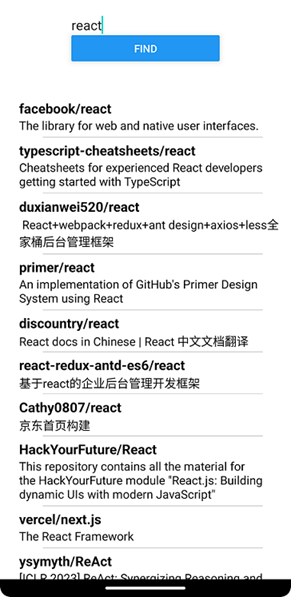
The following URL is used to get repositories by keyword. Response contains an item node that is an array of repository objects. We will display both the full_name and description of each repository.
https://api.github.com/search/repositories?q={keyword}
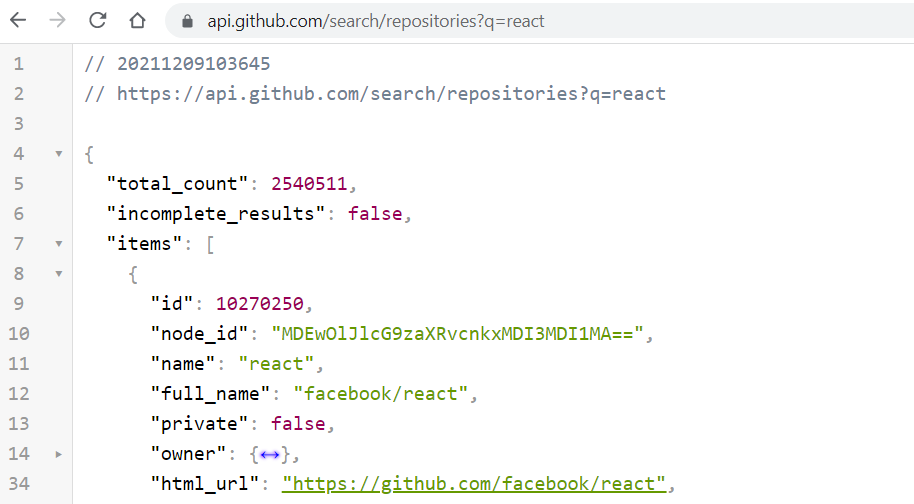
First, we define a Repository type that describes the shape of a single repository object. We only include the fields we actually use from the API response.
type Repository = {
  id: number;
  full_name: string;
  description: string | null;
};
We need states to store data that we get from the response and for keyword that we use in the query parameter.
// Import useState hook function
import { useState } from 'react';

// declare states
const [keyword, setKeyword] = useState('');
const [repositories, setRepositories] = useState<Repository[]>([]);
The return statement includes TextInput and Button components. The TextInput component allows users to input a keyword and we store it in the keyword state. The Button component triggers the execution of a fetch request when pressed.
return (
  <View style={styles.container}>
    <TextInput
      style={{fontSize: 18, width: 200}}
      placeholder='Enter a keyword'
      value={keyword}
      onChangeText={text => setKeyword(text)}
    />
    <Button title="Find" onPress={handleFetch} />
  </View>
);
The handleFetch function executes the request and gets a query parameter from the keyword state. Result array is saved to the repositories state from the response.
const handleFetch = () => {
  fetch(`https://api.github.com/search/repositories?q=${keyword}`)
  .then(response => {
    if (!response.ok)
      throw new Error("Error in fetch:" + response.statusText);

    return response.json()
  })
  .then(data => setRepositories(data.items))
  .catch(err => console.error(err));
}
Next, we add FlatList component to show response data in the return statement. We display both the full_name and description of the repositories.
return (
  <View style={styles.container}>
    <TextInput
      style={{fontSize: 18, width: 200}}
      placeholder='Enter a keyword'
      value={keyword}
      onChangeText={text => setKeyword(text)}
    />
    <Button title="Find" onPress={handleFetch} />
    <FlatList
      data={repositories}
      renderItem={({item}) =>
        <View>
          <Text style={{fontSize: 18, fontWeight: "bold"}}>
            {item.full_name}
          </Text>
          <Text style={{fontSize: 16 }}>
            {item.description}
          </Text>
        </View>}
    />
  </View>
);
Because data={repositories} is typed as Repository[], TypeScript automatically figures out that each item inside renderItem must be a Repository. Then, you get autocomplete and error checking.
The ActivityIndicator component in React Native is a visual indicator that represents the progress of an operation (https://reactnative.dev/docs/activityindicator). Next, we utilize that to show progress of fetch operation. First, we import the ActivityIndicator component from React Native.
We add a new state variable called loading to track whether the fetch operation is in progress.
import { useState } from 'react';
import { StyleSheet, Text, View, Button, TextInput,
          FlatList, StatusBar, ActivityIndicator } from 'react-native';

export default function App() {
  type Repository = {
    id: number;
    full_name: string;
    description: string | null;
  };

  const [keyword, setKeyword] = useState('');
  const [repositories, setRepositories] = useState<Repository[]>([]);
  const [loading, setLoading] = useState(false);
 // continue...
In the handleFetch function, we set loading state to true before sending the request and set it back to false after the request completes or encounters an error.
const handleFetch = () => {
  setLoading(true); // Set loading state to true before fetch

  fetch(`https://api.github.com/search/repositories?q=${keyword}`)
  .then(response => {
    if (!response.ok)
      throw new Error("Error in fetch:" + response.statusText);

    return  response.json()
  })
  .then(data => setRepositories(data.items))
  .catch(err => console.error(err))
  .finally(() => setLoading(false)); // Set loading state to false
}
Finally, we use conditional rendering to display ActivityIndicator component when the loading state is true. To prevent the button and text input from shifting to the center, remove the justifyContent setting from the container style. You can also wrap the ActivityIndicator in a separate View with custom centering styles.
 return (
    <View style={styles.container}>
      <TextInput
        style={{fontSize: 18, width: 200}}
        placeholder='Enter a keyword'
        value={keyword}
        onChangeText={text => setKeyword(text)}
      />
      <Button title="Find" onPress={handleFetch} />
      {
        loading ?
          <ActivityIndicator size="large" />
        :
          <FlatList
            style={{ margin: 20 }}
            data={repositories}
            renderItem={({item}) =>
              <View style={{ marginBottom: 5 }}>
                <Text style={{fontSize: 18, fontWeight: "bold"}}>
                  {item.full_name}
                </Text>
                <Text style={{fontSize: 16 }}>
                  {item.description}
                </Text>
            </View>}
          />
      }
    </View>
  );
}
Refactor the GitHub API app by splitting it into smaller, more manageable components. Specifically:
- Create a separate component for the list that displays repositories.
- Create a separate module for the REST API calls. You can also create a custom hook that handles networking. Read more about custom hooks in https://react.dev/learn/reusing-logic-with-custom-hooks.
- Read the next section about environment variables and configure the API URL to be read from a
.envfile.