Security
DevSecOps is the practice of integrating security into every stage of the software development lifecycle, combining development (Dev), security (Sec), and operations (Ops). It emphasizes collaboration between development, security, and operations teams to identify and address security issues early and continuously.
Practical examples of DevSecOps:
Automated Security Testing: Integrating tools like CodeQL or SonarQube into CI/CD pipelines to automatically scan code for vulnerabilities.
Container Security: Using tools such as Trivy or Aqua Security to scan container images for known vulnerabilities before deployment.
Infrastructure as Code (IaC) Scanning: Employing tools like Checkov or Terraform Compliance to ensure infrastructure code follows security best practices.
Secrets Management: Implementing solutions like HashiCorp Vault or Azure Key Vault to securely manage sensitive information such as API keys and passwords.
Automated security testing
Automated security testing in software development is the practice of using tools and scripts to automatically scan code and dependencies for security vulnerabilities throughout the development lifecycle. This process helps identify issues such as insecure code patterns, known vulnerabilities in libraries, misconfigurations, and secrets exposure before software is deployed.
CodeQL
CodeQL is a code analysis engine developed by GitHub (https://codeql.github.com/). You can find the licence here. It is open source and free for research (GitHub CodeQL can only be used on codebases that are released under an OSI-approved open source license, or to perform academic research). It's used to automatically find security vulnerabilities and bugs in source code by treating code as data and querying it like a database. CodeQL lets you write queries in a declarative language (similar to SQL) to examine the relationships and flow in your codebase.
You can run CodeQL from the command line (CodeQL CLI) or integrate with Visual Studio Code using the CodeQL extension.
Using CodeQL via the GitHub Security Tab
The easiest way to start using CodeQL is through the Security tab in your GitHub repository:
- Navigate to your repository on GitHub.
- Click the Security tab at the top.
- Select Code scanning alerts from the left menu.
- Click Set up code scanning.
- Choose Set up under "CodeQL Analysis". You can select from two options:
- Default will automatically find the best configuration
- Advanced creates workflow that can be customized
GitHub will automatically run the CodeQL analysis on your codebase. Results will appear in the Security tab under "Code scanning alerts".
Using Advanced mode
For testing CodeQL, you can use the following repository. Let's see how workflow file looks when advanced set-up is selected:
This workflow will automatically run code analysis on your repository when you push to main branch, open a pull request to main, or at a scheduled weekly time. The cron expression schedules a task to run every Friday at 19:20:
name: "CodeQL Advanced"

on:
  push:
    branches: [ "main" ]
  pull_request:
    branches: [ "main" ]
  schedule:
    - cron: '20 19 * * 5'
This job defines the analysis step for CodeQL. It runs on either macOS or Ubuntu depending on the language, and sets the necessary permissions to write security events and read packages, actions, and contents.
jobs:
  analyze:
    name: Analyze (${{ matrix.language }})
    runs-on: ${{ (matrix.language == 'swift' && 'macos-latest') || 'ubuntu-latest' }}
    permissions:
      security-events: write
      # required to fetch internal or private CodeQL packs
      packages: read
      # only required for workflows in private repositories
      actions: read
      contents: read
The next part of workflow sets up automated security analysis using CodeQL. The strategy section defines a matrix to run the workflow for different languages and build modes, specifically for actions and java-kotlin. The fail-fast: false option ensures that all matrix jobs run to completion, even if one fails early. The workflow checks out the repository code using the actions/checkout@v4 action. It then initializes CodeQL with the specified language and build mode from the matrix using github/codeql-action/init@v3. After initialization, it performs a CodeQL analysis with github/codeql-action/analyze@v3, categorizing the results by language.
The build-mode defines how code is built for the code analysis. There are three differen modes: none, autobuild and manual. You can read more about differen build modes here.
The supported languges can be found here.
When setting language:actions `CodeQL can scan your repository’s workflow files for security vulnerabilities specific to GitHub Actions, such as secrets leaks, unsafe script execution, and privilege escalations.
    strategy:
      fail-fast: false
      matrix:
        include:
        - language: actions
          build-mode: none
        - language: java-kotlin
          build-mode: none # This mode only analyzes Java. Set this to 'autobuild' or 'manual' to analyze Kotlin too.
    steps:
    - name: Checkout repository
      uses: actions/checkout@v4

    # Initializes the CodeQL tools for scanning.
    - name: Initialize CodeQL
      uses: github/codeql-action/init@v3
      with:
        languages: ${{ matrix.language }}
        build-mode: ${{ matrix.build-mode }}
    - name: Perform CodeQL Analysis
      uses: github/codeql-action/analyze@v3
      with:
        category: "/language:${{matrix.language}}"
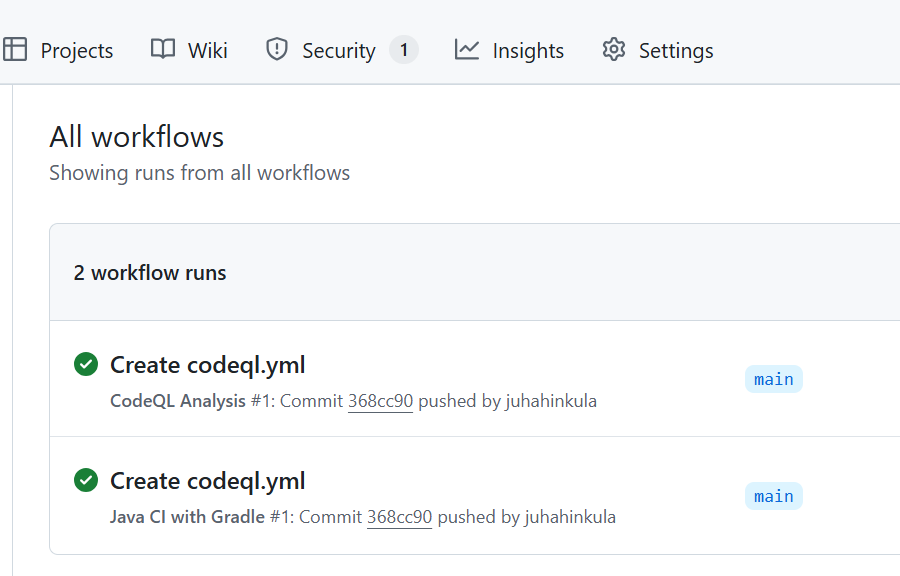
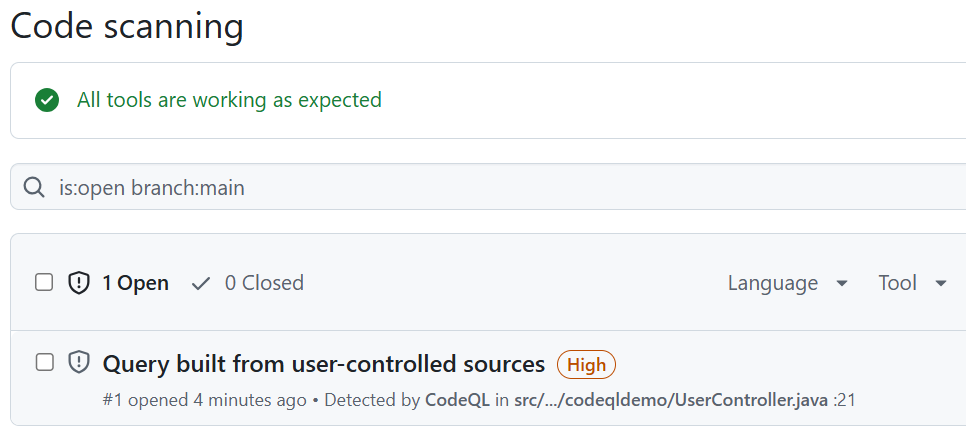
The workflow is now set up. After its first successful run, you should see a security issue detected in the Security tab, as shwon in the image below.
Navigate to the Security tab, select "Code scanning" from the left menu, and you should see the security alert listed there.
When you open the security alert, you'll find detailed information about the identified issue. To fix it, you can create a new branch and begin working on a fix. Additionally, you can use Copilot to help automatically resolve the issue.
You can also get CWE codes (Common Weakness Enumeration) that are standardized list of software security weaknesses maintained by the MITRE organization (https://cwe.mitre.org/). Each weakness is assigned a unique identifier, such as CWE-79 (Cross-site Scripting) or CWE-89 (SQL Injection).
You can also write your own custom CodeQL queries and you can read more about CodeQL syntax in https://codeql.github.com/docs/codeql-overview/.
OWASP WebGoat is an intentionally insecure web application created by the Open Web Application Security Project (OWASP) for educational purposes.
Fork WebGoat repository from https://github.com/WebGoat/WebGoat/wiki/Forking-WebGoat-in-GitHub
After cloning the repository, you can start WebGoat using Docker:
docker run -it -p 127.0.0.1:8080:8080 -p 127.0.0.1:9090:9090 webgoat/webgoat
Once the container is running, open your browser and navigate to localhost:8080/WebGoat to access the WebGoat application.
Next, create a GitHub Actions workflow to your WebGoat repository to run CodeQL analysis on the WebGoat Java source code. WebGoat is intentionally vulnerable, so CodeQL will detect many issues.
GitHub Dependabot
GitHub Dependabot is a built-in tool in GitHub that helps you keep your dependencies up to date and secure. It automatically checks your project’s dependencies for outdated or insecure libraries. When it finds a new version or a security vulnerability, Dependabot can automatically create pull requests to update the affected dependencies.
To get practical experience with GitHub Dependabot, it is recommended that you follow the official Dependabot quickstart tutorial.
Follow the Dependabot quickstart guide to learn more about Dependabot. This guide walks you through setting up and enabling Dependabot, viewing Dependabot alerts, and updating your repository to use a secure version of the dependency.
https://docs.github.com/en/code-security/getting-started/dependabot-quickstart-guide